
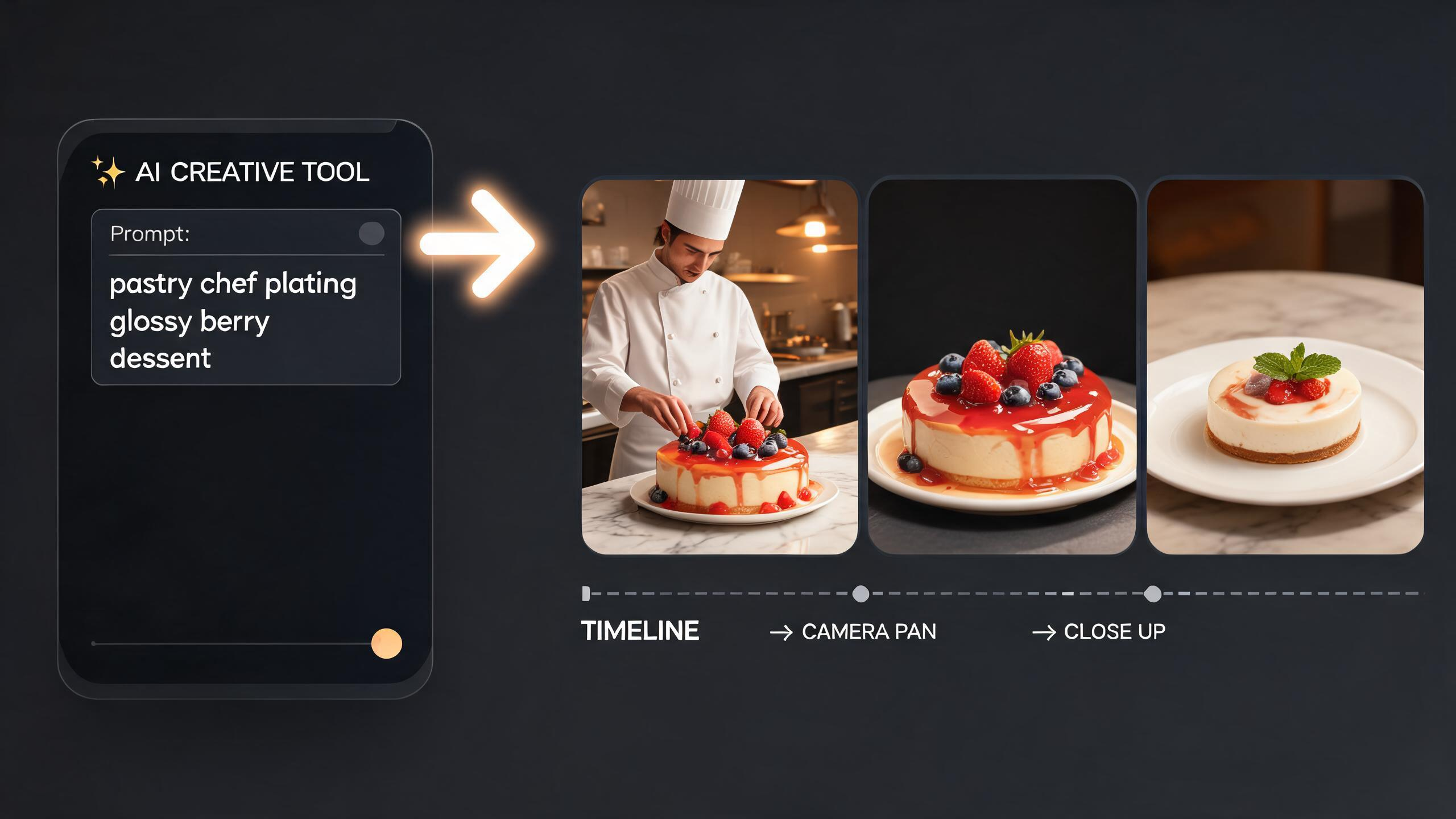
AI video generation is harder to control than image generation. A short idea like "a chef plating a dessert" gives the model a subject, but it does not define the shot. The model still has to guess the camera movement, action timing, lighting, visual style, frame rate, motion quality, and what should stay consistent from the first frame to the last.
That is why video prompts need more than visual description. They need motion direction.
A strong video prompt tells the model what appears on screen, how it moves, how the camera moves, and how the shot changes over time. The goal is not to make the prompt long for its own sake. The goal is to make the video more predictable.
Think in Video Controls
A good video prompt usually controls these parts of the shot:
- Subject: the main person, object, product, creature, place, or scene.
- Scene: the environment, background, atmosphere, weather, props, and time of day.
- Action: what happens, how the subject moves, and how fast or slowly it moves.
- Camera: shot type, framing, camera angle, lens feel, and camera movement.
- Temporal flow: how the video begins, evolves, and ends.
- Style: cinematic language, genre, mood, color grade, and visual direction.
- Lighting: source, direction, softness, contrast, shadows, and highlights.
- Technical details: aspect ratio, resolution, frame rate, depth of field, and motion blur.
- Negative prompt: defects to avoid, such as flicker, jitter, warped hands, identity drift, broken motion, watermark, or text.
When one of these controls is missing, the model fills the gap. For images, that can create a wrong composition. For video, it can create unstable motion, inconsistent subjects, sudden camera jumps, or a shot that starts well but falls apart after a few seconds.
Where Promtist Video Prompt Generator Helps
Promtist Video Prompt Generator is built for the gap between a quick idea and a usable text-to-video prompt.
Use Simple mode when speed matters. It turns a short video description into one ready-to-use prompt with motion, camera, lighting, style, and timing already filled in. Simple mode is best when you are exploring ideas, testing a new model, or creating short social video concepts.
Use Advanced mode when control matters. It builds the prompt around subject, scene, action, camera, temporal flow, style, lighting, technical details, and negative prompt guidance. Advanced mode is better for commercial shots, product videos, story previsualization, game trailers, film concepts, and repeatable workflows.
Use Plain format when you want one natural language prompt that can be copied directly into a video generation model.
Use JSON format when you want structured fields that can be edited, stored, reused, or passed into an automated workflow. JSON format is available in Advanced mode, where each part of the video prompt can be controlled separately.
Example: A Chef Plating a Dessert
Let's use a video idea that needs more than a static visual description:
chef plating a dessert
The short input gives the model a subject and a broad action. It does not say what kind of chef, what dessert, where the shot happens, how the camera moves, how long the shot should last, or what failure modes should be avoided.
A more controlled version should specify the subject, scene, action, camera, temporal flow, style, lighting, technical details, and negative prompt.
Suggested Advanced Plain prompt for the article illustration:
A professional pastry chef with precise hands and a clean white jacket plating a glossy berry dessert, modern open kitchen with brushed steel counters, soft background activity, rising steam, and refined restaurant atmosphere, the chef adds a ribbon of sauce, places delicate garnish with tweezers, and rotates the plate with smooth controlled motion, close-up macro-style shot with a slow clockwise camera orbit around the dessert and shallow depth of field, 6-8 second real-time sequence beginning with the empty plate in frame, building through sauce and garnish placement, and ending on a polished hero shot of the finished dessert, elegant culinary commercial style with warm editorial color grading and appetizing texture detail, soft studio key light from the upper left with gentle highlights on glaze, subtle rim light on the plate, and natural shadows on the counter, 16:9 aspect ratio, 4K resolution, 30fps, realistic hand motion, controlled motion blur, crisp focus on the dessert, avoid warped hands, melting geometry, messy motion, flicker, inconsistent plate position, unreadable text, watermark.
This prompt is not just more descriptive. It gives the model a shot plan.
Why This Prompt Produces More Stable Videos
The subject is specific: a professional pastry chef, precise hands, a clean white jacket, and a glossy berry dessert. The model has less room to drift into a generic cooking scene.
The scene is defined: a modern open kitchen with brushed steel counters, steam, and restaurant atmosphere. This keeps the background useful without making it too busy.
The action is sequential: sauce, garnish, rotation, finished plate. This helps the model understand what should happen over time instead of generating random hand movement.
The camera is controlled: close-up macro-style shot, slow clockwise orbit, shallow depth of field. This creates a clear cinematic behavior instead of a static or unstable shot.
The temporal flow gives the video a beginning, middle, and ending. It starts with the empty plate, builds through the plating action, and ends on the finished dessert.
The style and lighting support the goal: elegant culinary commercial footage with warm editorial grading and soft studio light. That makes the shot feel like a restaurant ad, not a casual phone recording.
The technical details guide output shape and motion quality: 16:9, 4K, 30fps, realistic hand motion, controlled motion blur, and crisp focus.
The negative prompt blocks common video failures: warped hands, melting geometry, messy motion, flicker, inconsistent plate position, unreadable text, and watermark.
Simple Prompt vs Advanced Prompt
Simple mode is useful when the creative risk is low. If you only need a fast draft, a mood reference, or a quick short-form concept, Simple mode can turn a loose idea into something usable without making you choose every field.
Advanced mode is useful when the shot has a job. Product videos need stable objects. Food videos need believable hand motion. Character videos need identity consistency. Story scenes need a temporal arc. In those cases, Advanced mode gives the prompt enough structure to reduce randomness.
The practical difference is this:
- Simple mode creates a polished prompt quickly.
- Advanced mode creates a controlled prompt for a specific shot.
Use Simple when you want momentum. Use Advanced when you want direction.
Plain Prompt vs JSON Prompt
Plain format is best when you want to paste one prompt into an AI video tool. It keeps everything in one natural-language string.
JSON format is better when the prompt is part of a workflow. You can edit one field without rewriting the whole prompt. You can keep the same camera and lighting while changing the subject. You can store structured prompt templates in a database. You can pass each field into an API, form, or internal review process.
For the dessert example, an Advanced JSON version could look like this:
{
  "SUBJECT": "A professional pastry chef with precise hands, a clean white jacket, and a glossy berry dessert on a white ceramic plate",
  "SCENE": "A modern open kitchen with brushed steel counters, soft background activity, rising steam, and refined restaurant atmosphere",
  "ACTION": "The chef adds a ribbon of sauce, places delicate garnish with tweezers, and rotates the plate with smooth controlled motion",
  "CAMERA": "Close-up macro-style shot with a slow clockwise camera orbit around the dessert, shallow depth of field, crisp focus on the plate",
  "TEMPORAL_FLOW": "6-8 second real-time sequence beginning with the empty plate in frame, building through sauce and garnish placement, and ending on a polished hero shot of the finished dessert",
  "STYLE": "Elegant culinary commercial style with warm editorial color grading and appetizing texture detail",
  "LIGHTING": "Soft studio key light from the upper left with gentle highlights on glaze, subtle rim light on the plate, and natural shadows on the counter",
  "TECHNICAL": "16:9 aspect ratio, 4K resolution, 30fps, realistic hand motion, controlled motion blur, high detail",
  "NEGATIVE_PROMPT": "warped hands, melting geometry, messy motion, flicker, inconsistent plate position, unreadable text, watermark"
}
The advantage of JSON is that it turns the prompt into editable parts. If the shot feels too slow, adjust TEMPORAL_FLOW. If the camera is too close, adjust CAMERA. If the hands look unstable, strengthen NEGATIVE_PROMPT. If the output needs a vertical social format, change TECHNICAL.
Common Video Prompt Mistakes
The first mistake is writing only the subject. "A chef plating a dessert" is not enough. Video models need motion, camera, and timing.
The second mistake is describing a still image. A video prompt should say what changes during the shot. If nothing changes, the model may invent unstable movement.
The third mistake is using vague camera language. "Cinematic" helps with style, but it does not define whether the camera is static, tracking, orbiting, pushing in, tilting, or handheld.
The fourth mistake is ignoring temporal flow. A good video prompt should describe the first moment, the main movement, and the ending frame.
The fifth mistake is skipping the negative prompt. Video generation often fails through flicker, jitter, identity drift, warped limbs, inconsistent objects, or broken physics. Name the defects you want to avoid.
A Practical Workflow
Start with a short idea. Then use Promtist Video Prompt Generator to create the first draft.
If speed matters, choose Simple + Plain. This gives you one polished video prompt quickly.
If the shot needs stronger direction but you still want one copyable prompt, choose Advanced + Plain.
If the prompt will be edited, reused, stored, reviewed, or passed into an automated workflow, choose Advanced + JSON.
After generation, inspect the result field by field:
- Is the subject specific enough to stay consistent?
- Does the scene support the shot instead of distracting from it?
- Is the action clear and physically possible?
- Does the camera movement match the intended mood?
- Does the temporal flow define a beginning, middle, and ending?
- Do the style and lighting support the final use case?
- Are the technical settings appropriate for the target platform?
- Does the negative prompt block the most likely defects?
Video prompting is a process of controlling motion. Promtist helps by turning a loose idea into a structured shot description, so you can spend less time guessing and more time refining the video you actually want to create.
Read more
How to Control AI Image Generation with Prompts
Learn how to turn a loose image idea into a precise prompt using Promtist Image Prompt Generator.
How to Write a Good Prompt
Why prompt is important and how to write a good prompt.
Product Update: Image to Prompt Generator Is Now Available
Promtist Image to Prompt Generator turns uploaded images into reusable AI image prompts in Plain or JSON format.