
We have added Promtist Image to Prompt Generator.
This update lets you upload an image and turn the visible visual information into a reusable AI image prompt. Instead of starting from a blank text box, you can begin with an existing image, extract its subject, style, lighting, camera feel, composition, materials, and details, then use the result in your next image generation workflow.
The feature is designed for a common creative problem: sometimes the fastest way to describe what you want is to show an image first.
What Image to Prompt Does
Image to Prompt analyzes an uploaded image and converts it into prompt language for text-to-image generation.
It can help describe the parts of an image that are easy to see but time-consuming to write manually:
- Subject: the main person, product, object, place, or scene.
- Environment: the background, setting, atmosphere, props, and visible context.
- Style: the visual language, such as editorial photography, cinematic concept art, 3D render, anime, or minimal product photography.
- Lighting: light direction, softness, contrast, shadows, highlights, glow, and mood.
- Camera: angle, shot type, lens impression, depth of field, and framing.
- Composition: placement, crop, perspective, symmetry, negative space, and visual balance.
- Details: textures, materials, colors, small objects, surface finish, and realism cues.
- Quality: detail level, professional finish, resolution-style keywords, and rendering quality.
- Negative prompt: common defects to avoid, such as blur, distortion, low quality, watermark, unreadable text, or messy artifacts.
The goal is not to identify everything in the image perfectly. The goal is to turn visible creative direction into a strong starting prompt.
Why We Built It
Text-to-image tools are powerful, but writing a good image prompt still requires visual vocabulary. You need to describe the subject, the lighting setup, the style, the lens feel, the composition, and the details that make the image work.
That is difficult when you already have a reference image in front of you.
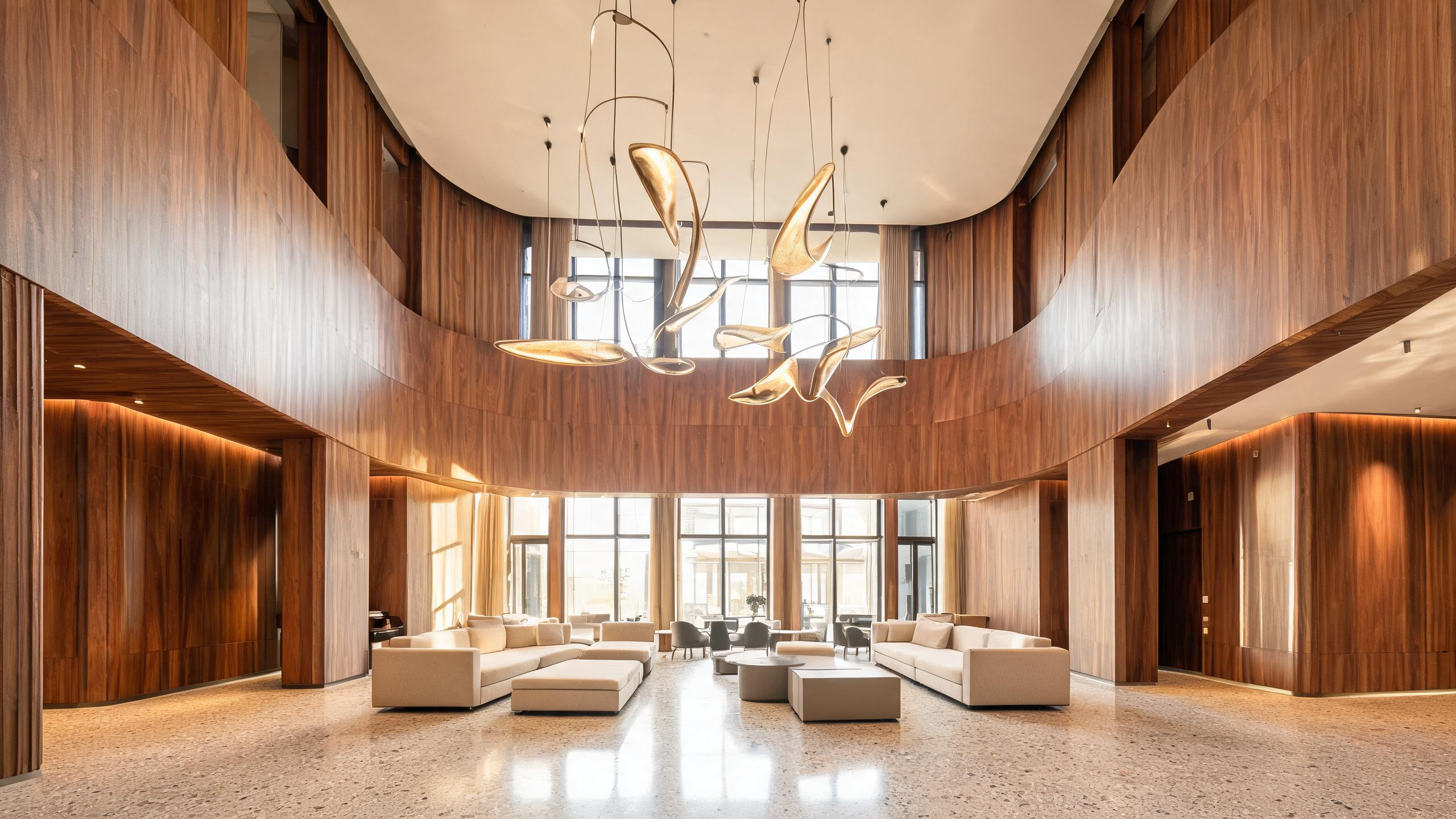
For example, you might like a product photo because of its soft shadows, clean negative space, marble surface, and warm editorial finish. Or you might want to recreate the mood of an interior photo with curved wood panels, terrazzo flooring, pendant lights, and wide-angle symmetry.
Without Image to Prompt, you have to translate that visual judgment into prompt language by hand. That often leads to vague prompts like:
modern hotel lobby, warm light, realistic
That prompt gives the model a theme, but it misses the parts that actually control the result.
Image to Prompt helps bridge that gap. It turns the reference image into a more detailed prompt that you can copy, edit, store, or reuse.
Plain Format vs JSON Format
Image to Prompt supports two output formats: Plain and JSON.
Use Plain format when you want one clean prompt that can be pasted directly into Midjourney, DALL-E, Stable Diffusion, Flux, ComfyUI, or another image model.
Plain output is best for fast creative work:
- Upload a reference image.
- Generate a prompt.
- Copy the result.
- Paste it into your image generation tool.
- Adjust the prompt based on the output.
Use JSON format when you want structured prompt fields.
JSON output is better when the prompt needs to be edited, stored, compared, reviewed, or passed into an automated workflow. Instead of one long paragraph, the prompt is split into fields such as SUBJECT, ENVIRONMENT, STYLE, LIGHTING, CAMERA, COMPOSITION, DETAILS, QUALITY, and NEGATIVE_PROMPT.
That structure makes the prompt easier to reuse. You can keep the same lighting and camera direction, then swap the subject. You can keep the same product and test different environments. You can also store the fields in a database or pass them into a prompt pipeline.
Example: Architecture Interior Reference
Let's use an interior reference image:
A short manual prompt might be:
modern hotel lobby with warm lighting
That is usable, but it leaves too many decisions open. The model still has to invent the materials, composition, lens, lighting direction, color palette, and design language.
Image to Prompt can turn the same reference into a more useful generation prompt:
A modern boutique hotel lobby with curved walnut wall panels, terrazzo floor, low modular sofas, sculptural pendant lights, warm ambient lighting, wide-angle architectural photography, clean symmetry, refined hospitality design, natural afternoon light through tall windows.
This prompt is stronger because it captures the visible design system of the image. It does not only say "modern lobby." It describes the surfaces, furniture, lighting, camera feel, composition, and atmosphere.
Why This Prompt Is More Useful
The subject is specific: a modern boutique hotel lobby, not just an interior.
The environment is clearer: walnut wall panels, terrazzo floor, modular sofas, pendant lights, and tall windows.
The style points toward architectural photography and refined hospitality design, which guides the model toward a polished commercial result.
The lighting is more controlled: warm ambient lighting with natural afternoon light. This helps avoid flat or random illumination.
The camera is implied through wide-angle architectural photography. That pushes the output toward spatial depth and room-scale composition.
The composition is described as clean symmetry, which matters for interiors because framing can change the whole feeling of the image.
The result is not only longer. It gives the image model more visual decisions to follow.
When to Use Image to Prompt
Use Image to Prompt when an existing visual is the best way to communicate direction.
It is useful for:
- Style replication: capture the visual language of a reference image without manually listing every detail.
- Product direction: describe lighting, surfaces, framing, and material finish from product references.
- Creative documentation: turn screenshots, moodboard images, and concept references into editable prompt notes.
- Prompt engineering: study why an image works and convert that structure into a reusable prompt.
- Team workflows: create shared prompt references for designers, marketers, creators, and product teams.
It is also useful when you do not know the exact vocabulary for an image. You might recognize the style, lighting, or composition visually, but not know how to describe it. Image to Prompt gives you a first draft that you can refine.
What to Check After Generation
Image to Prompt gives you a strong starting point, but you should still review the result before using it.
Check these parts:
- Is the subject described accurately?
- Does the prompt capture the visible environment?
- Does the style match the reference image?
- Are lighting and camera cues useful for the image model?
- Is the composition specific enough?
- Are materials, colors, and details worth keeping?
- Does the negative prompt block likely defects?
- Did the prompt avoid inventing brands, identities, or readable text that are not clearly visible?
That last point matters. A good reverse prompt should describe what can be seen. If a logo, location, person, or character identity is uncertain, it is better to describe the visual category instead of making a specific claim.
A Practical Workflow
Start with a reference image that represents the direction you want.
Choose Plain format if you want a direct prompt for a text-to-image model. This is the fastest workflow for exploration.
Choose JSON format if you want to edit or reuse the prompt as structured fields. This is better for repeatable workflows, product image systems, creative archives, and automation.
After generating the prompt, edit it for your actual goal. If you want a similar style but a different subject, replace the subject. If you want the same product but a new environment, edit the environment. If the generated image model keeps adding artifacts, strengthen the negative prompt.
Image to Prompt is built to make reference images easier to use. It turns visual direction into prompt language, so you can spend less time guessing how to describe an image and more time refining the image you want to create.
Read more
Product Update: Text Prompt Generator Now Supports Task Types
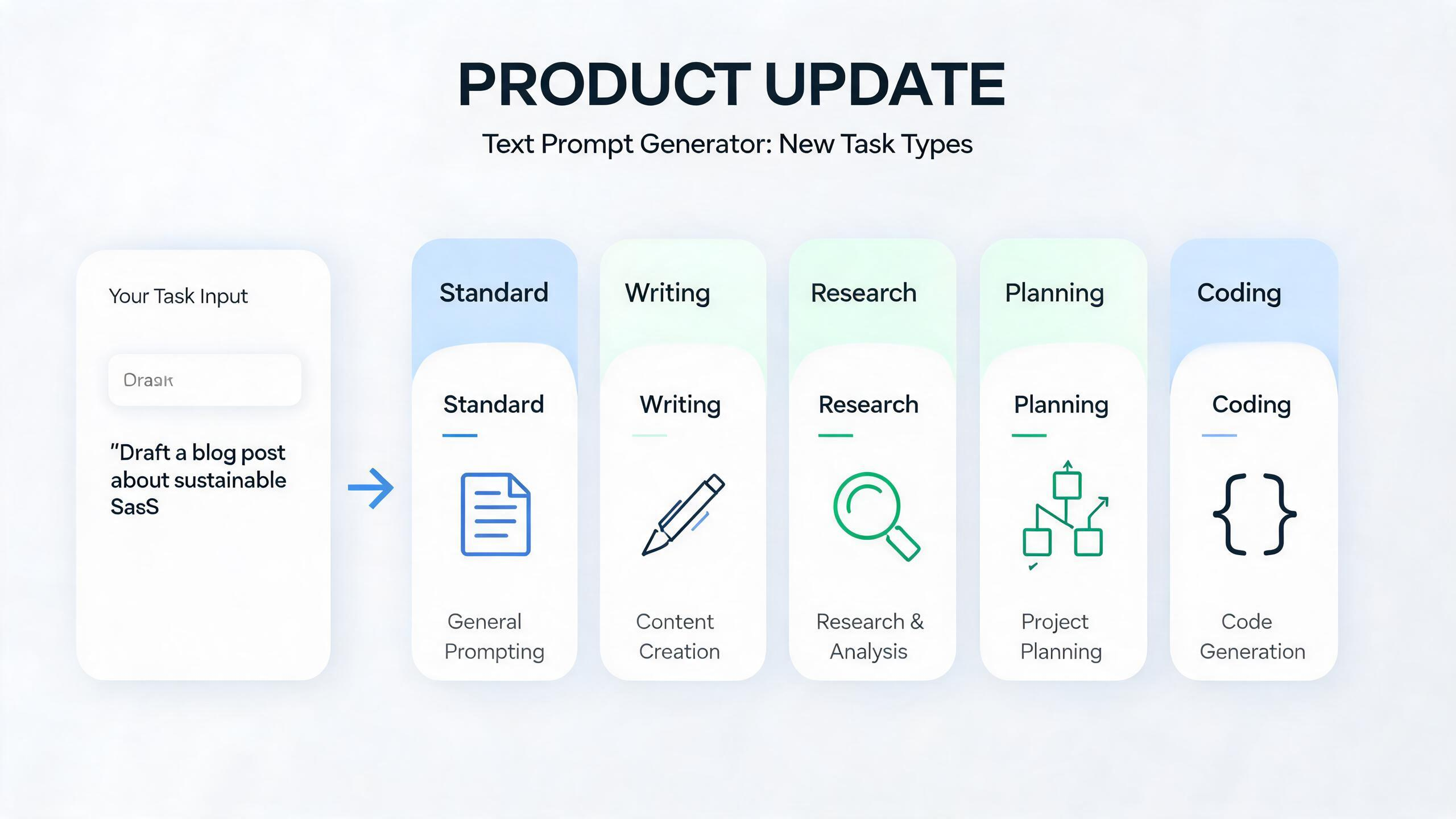
Promtist Text Prompt Generator now supports task types for Standard, Writing, Research, Planning, and Coding prompts.
From Idea to Shot: Better AI Video Prompts
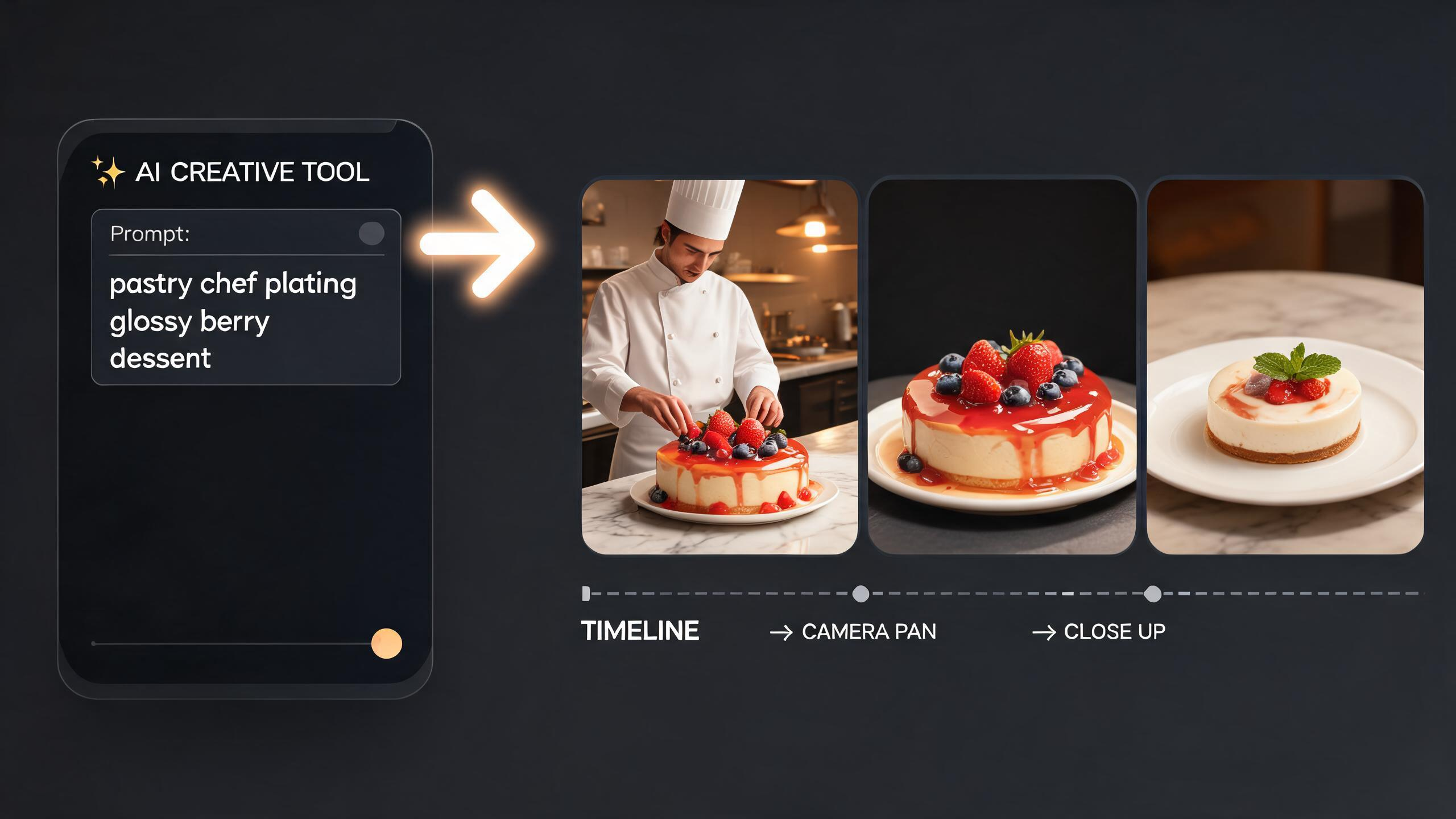
Learn how to turn a short video idea into a shot-ready prompt using Promtist Video Prompt Generator.
How to Control AI Image Generation with Prompts
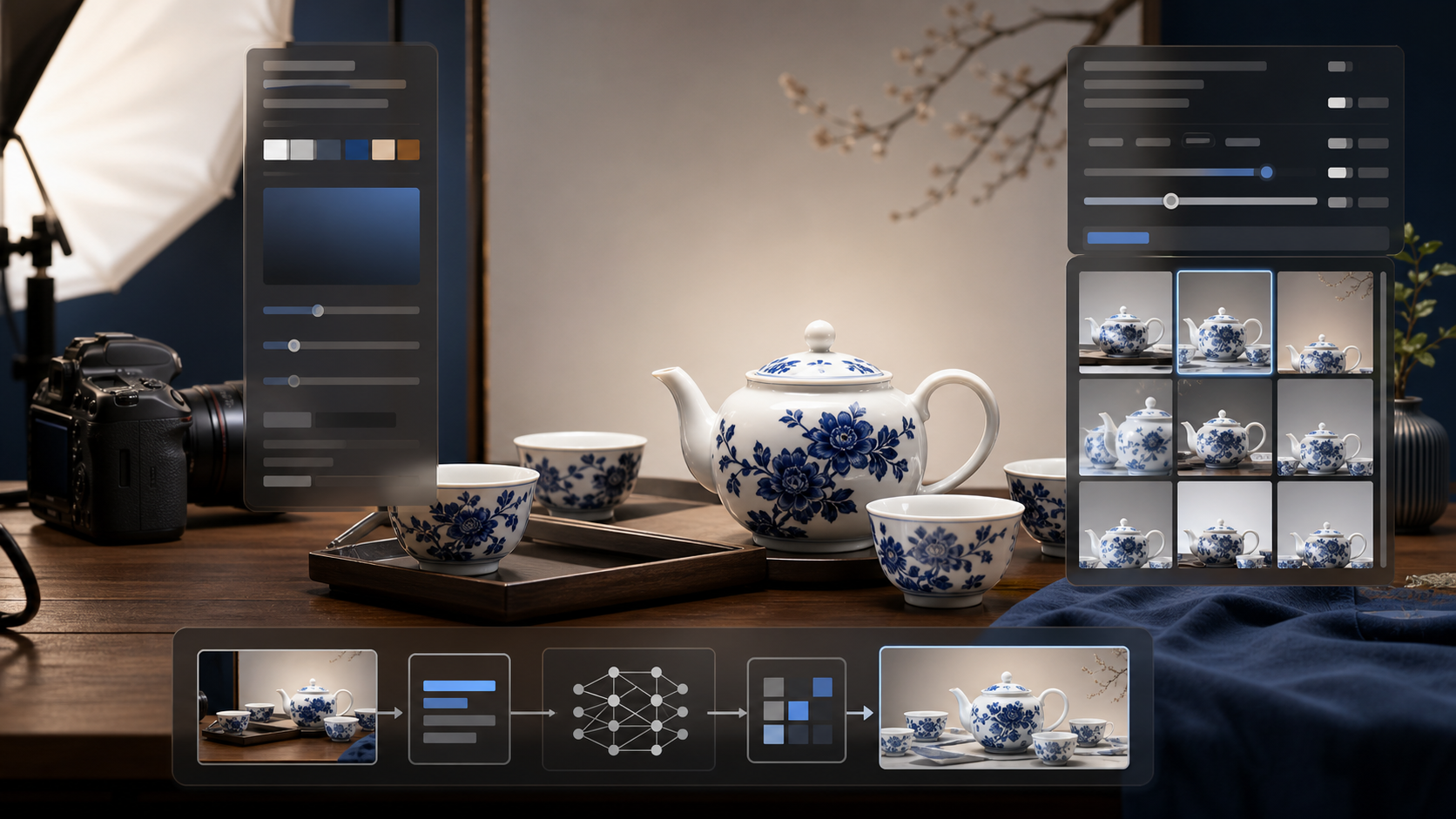
Learn how to turn a loose image idea into a precise prompt using Promtist Image Prompt Generator.