
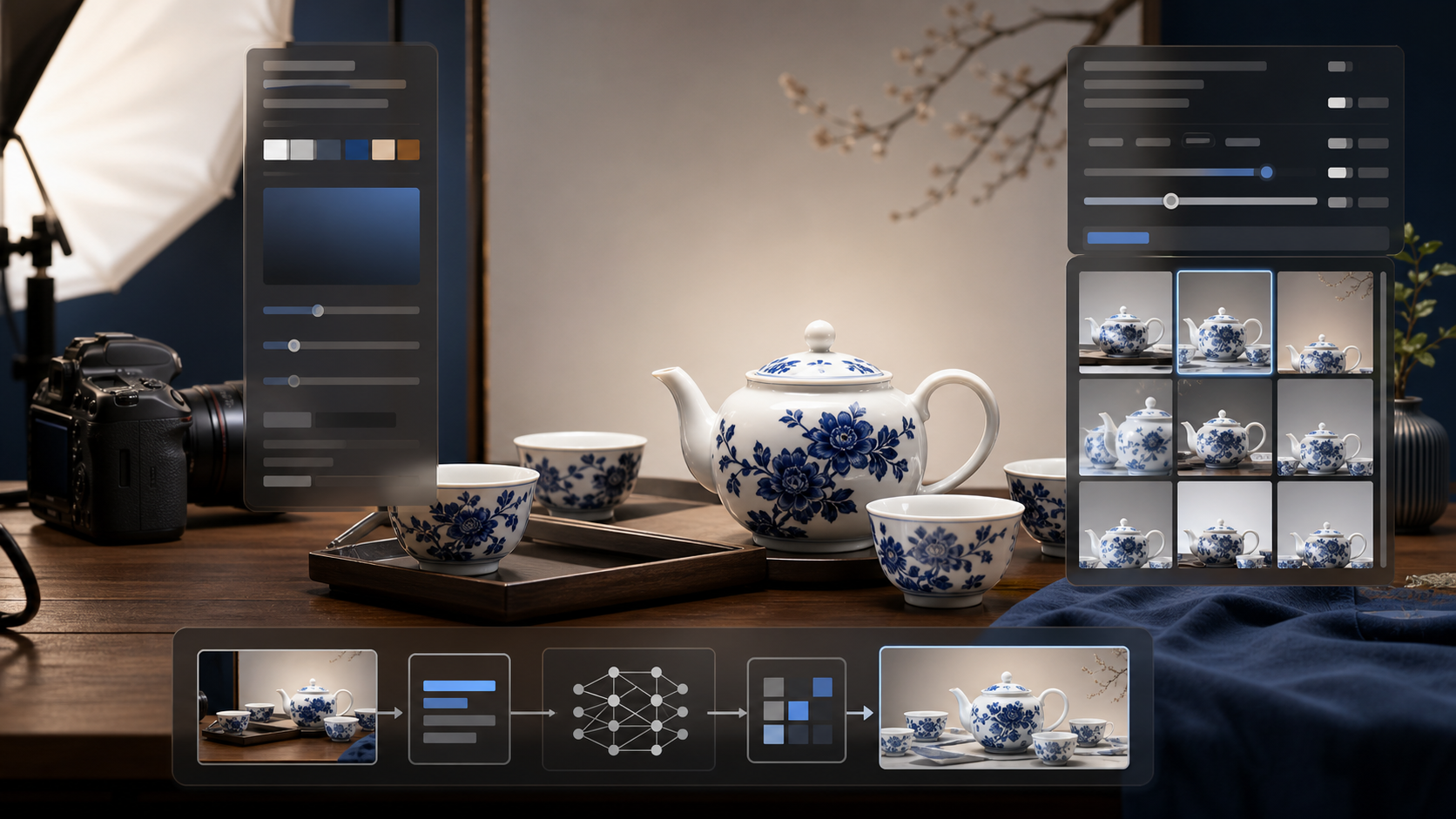
AI image generation is not just about describing what you want. A short prompt like "a tea set ad" gives the model too many open choices: what kind of tea set, which surface, what lighting, what camera angle, what style, and what should be avoided.
Precise prompting narrows those choices. The goal is not to write a longer sentence for its own sake. The goal is to turn a vague idea into a visual specification the model can follow.
Think in Visual Controls
A strong image prompt usually controls these parts of the image:
- Subject: the main object, person, product, place, or scene.
- Environment: the background, setting, atmosphere, season, or time of day.
- Style: photography, editorial, 3D render, anime, watercolor, cinematic, or another visual language.
- Lighting: soft diffused light, neon light, golden hour, rim light, backlight, shadows, and highlights.
- Camera: angle, shot type, lens, depth of field, and perspective.
- Composition: framing, subject placement, symmetry, leading lines, empty space, and visual balance.
- Details: texture, materials, color accents, small objects, realism cues, and finish.
- Quality: resolution, rendering quality, professional finish, and detail level.
- Negative prompt: artifacts and defects to avoid, such as blur, distorted anatomy, watermark, text, or clutter.
When one of these controls is missing, the model fills the gap. Sometimes that works. Often it creates random results.
Where Promtist Image Prompt Generator Helps
Promtist Image Prompt Generator is built for this exact gap between a short idea and a usable image prompt.
Use Simple mode when you want a fast result. It turns a short image idea into one ready-to-copy prompt. This is useful when you are exploring ideas or pasting directly into tools such as Midjourney, DALL-E, Stable Diffusion, Flux, or another image model.
Use Advanced mode when you need more control. It builds the prompt around subject, environment, style, lighting, camera, composition, details, quality, and negative prompt. This is better for product visuals, character design, campaign images, ecommerce assets, and repeatable workflows.
Use Plain format when you want one natural language prompt. Use JSON format when you want separate fields that can be edited, stored, reused, or passed into an automated image workflow.
Example: An Oriental Porcelain Tea Set Product Ad
To avoid a generic example, let's use a product image that needs real visual control:
oriental porcelain tea set product ad
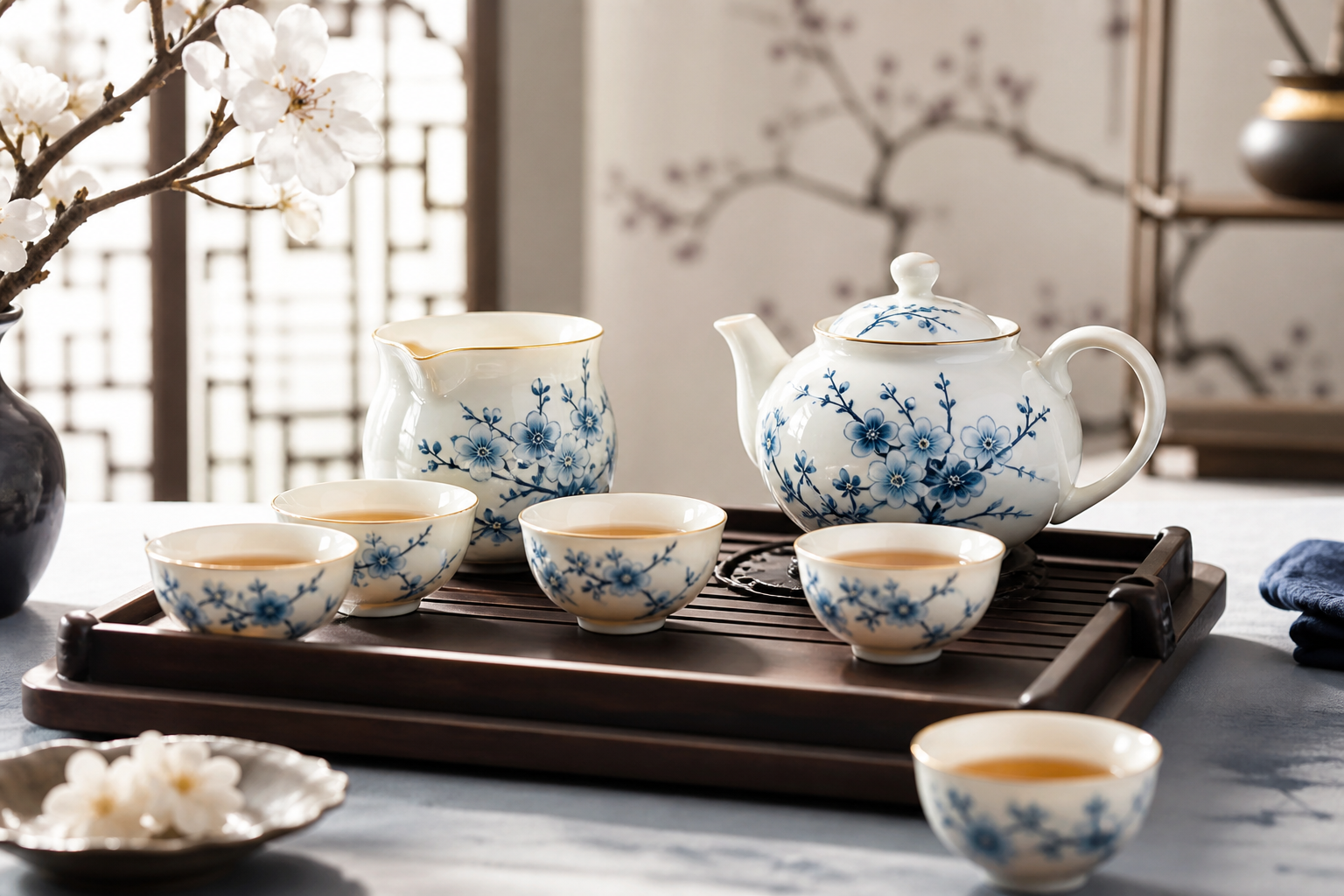
That short input gives the model the theme, but it does not define the image. A more controlled version should specify the product, setting, lighting, lens, composition, details, and negative prompt.
Suggested prompt for the article illustration:
A premium product advertising photo of a white porcelain tea set with blue hand-painted floral patterns, including a teapot, two teacups, and a low ceramic tray, arranged on a dark walnut wood tabletop in a modern Chinese minimalist setting, high-end editorial product photography, soft diffused side light from the upper left, delicate rim highlights on the porcelain glaze, close-up 85mm lens, shallow depth of field, centered product group with generous empty space on the right for brand copy, visible tea steam, glossy ceramic reflections, fine glaze texture, warm tea color, refined commercial finish, highly detailed, high dynamic range, avoid plastic texture, distorted cup rims, messy background, harsh glare, watermark, text.
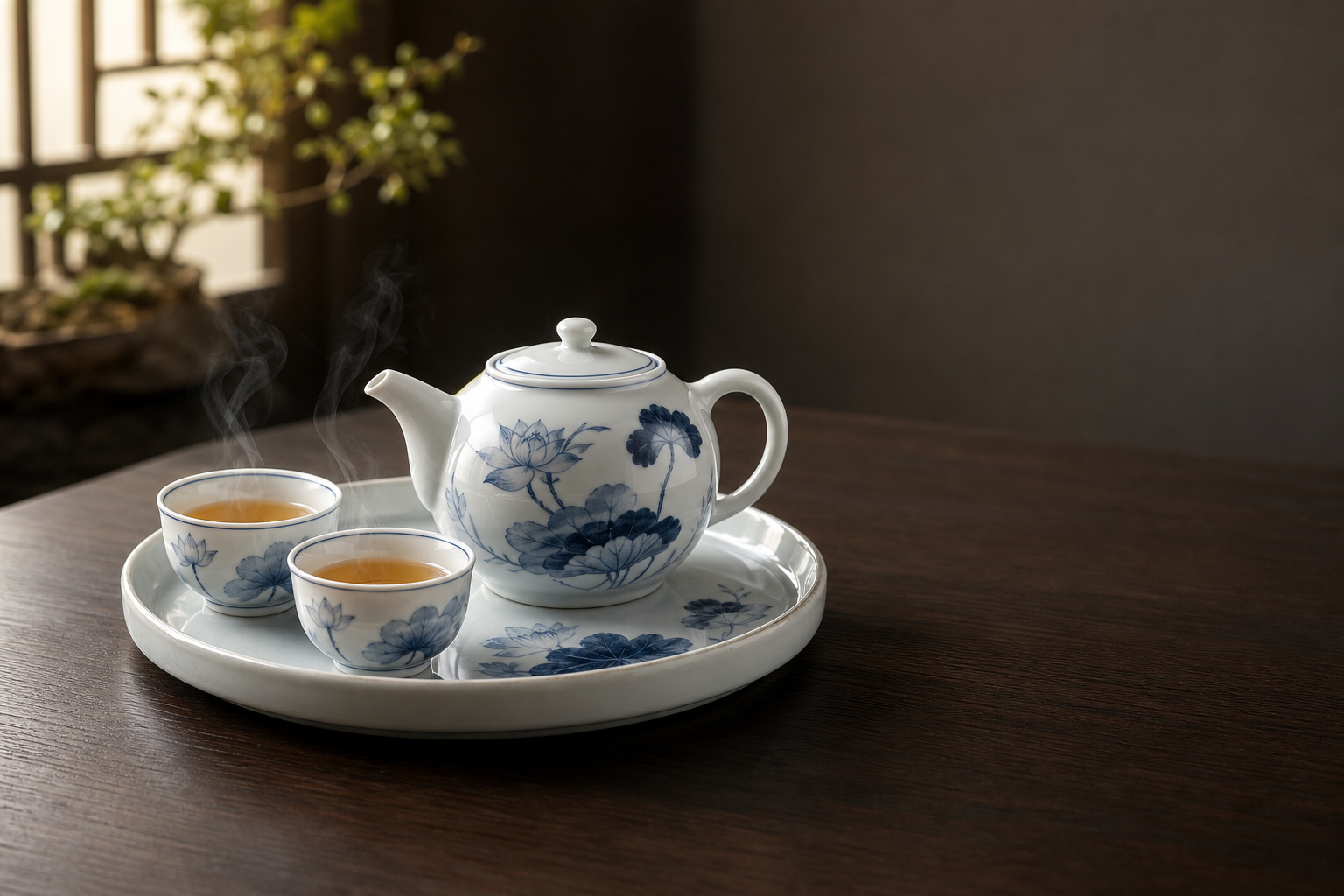
This prompt is not just longer. It is more controllable.
Why This Prompt Produces More Stable Images
The subject is specific: white porcelain tea set, blue hand-painted floral patterns, teapot, two cups, tray. The model is less likely to replace it with a random mug or generic tableware.
The environment is defined: dark walnut tabletop and modern Chinese minimalist setting. This keeps the output from drifting into a busy kitchen, outdoor tea garden, or fantasy scene.
The style is commercial: high-end editorial product photography. That pushes the result toward a brand-ready ad image instead of a casual still life.
The lighting is controlled: soft diffused side light with rim highlights. This matters for porcelain because harsh glare can destroy the shape and texture.
The camera is controlled: close-up 85mm lens and shallow depth of field. This creates a premium product photography feel.
The composition has a real design purpose: centered product group with empty space on the right for brand copy. That makes the image more useful for campaigns, banners, and social posts.
The negative prompt prevents common failures: plastic texture, distorted rims, messy background, harsh glare, watermark, and text.
Plain Prompt vs JSON Prompt
Plain format is best when you want to copy one prompt into an image model. JSON format is better when the prompt becomes part of a workflow.
For the tea set example, a JSON version could look like this:
{
  "SUBJECT": "A white porcelain tea set with blue hand-painted floral patterns, including a teapot, two teacups, and a low ceramic tray",
  "ENVIRONMENT": "A dark walnut wood tabletop in a modern Chinese minimalist setting",
  "STYLE": "High-end editorial product advertising photography",
  "LIGHTING": "Soft diffused side light from the upper left with delicate rim highlights on the porcelain glaze",
  "CAMERA": "Close-up 85mm lens, shallow depth of field, crisp focus on the tea set",
  "COMPOSITION": "Centered product group with generous empty space on the right for brand copy",
  "DETAILS": "Visible tea steam, glossy ceramic reflections, fine glaze texture, warm tea color",
  "QUALITY": "Refined commercial finish, highly detailed, high dynamic range",
  "NEGATIVE_PROMPT": "plastic texture, distorted cup rims, messy background, harsh glare, watermark, text"
}
The advantage of JSON is that every field can be edited independently. You can keep the same lighting and camera setup, then replace only the subject. Or you can keep the tea set and test different environments.
Common Prompt Mistakes
The first mistake is writing only the subject. "Tea set" is not enough. The model still has to invent the style, camera, lighting, and setting.
The second mistake is stacking conflicting styles. "Minimalist, baroque, cyberpunk, watercolor, photorealistic product photo" gives the model too many directions at once.
The third mistake is ignoring composition. If the image needs to support a banner, ad, thumbnail, or landing page hero, say where the subject should sit and where empty space should remain.
The fourth mistake is skipping the negative prompt. If your model supports negative prompting, use it to reduce repeated defects.
A Practical Workflow
Start with a short idea. Then use Promtist Image Prompt Generator to create a first draft. If speed matters, choose Simple mode and Plain format. If control matters, choose Advanced mode. If the prompt will be reused or automated, choose JSON format.
After generation, inspect the result field by field:
- Is the subject specific enough?
- Is the environment helping the image?
- Does the style match the goal?
- Are lighting and camera clearly described?
- Does the composition fit the final use case?
- Are the negative prompts blocking common defects?
Precise image prompting is a repeatable process. Promtist helps by turning the blank page into a structured starting point, so you can spend less time guessing and more time refining the image you actually want.
Read more
From Idea to Shot: Better AI Video Prompts
Learn how to turn a short video idea into a shot-ready prompt using Promtist Video Prompt Generator.
How to Write a Good Prompt
Why prompt is important and how to write a good prompt.
Product Update: Image to Prompt Generator Is Now Available
Promtist Image to Prompt Generator turns uploaded images into reusable AI image prompts in Plain or JSON format.